

Recording system/computer audio is a Pro feature. You can record it from the NeetoRecord desktop app, the Chrome extension and the web recorder.
We recommend using headphones while recording system audio. Otherwise, an echo effect might occur, as the same audio could be captured both by your computer's microphone and the screen.
Recording system audio in the desktop app
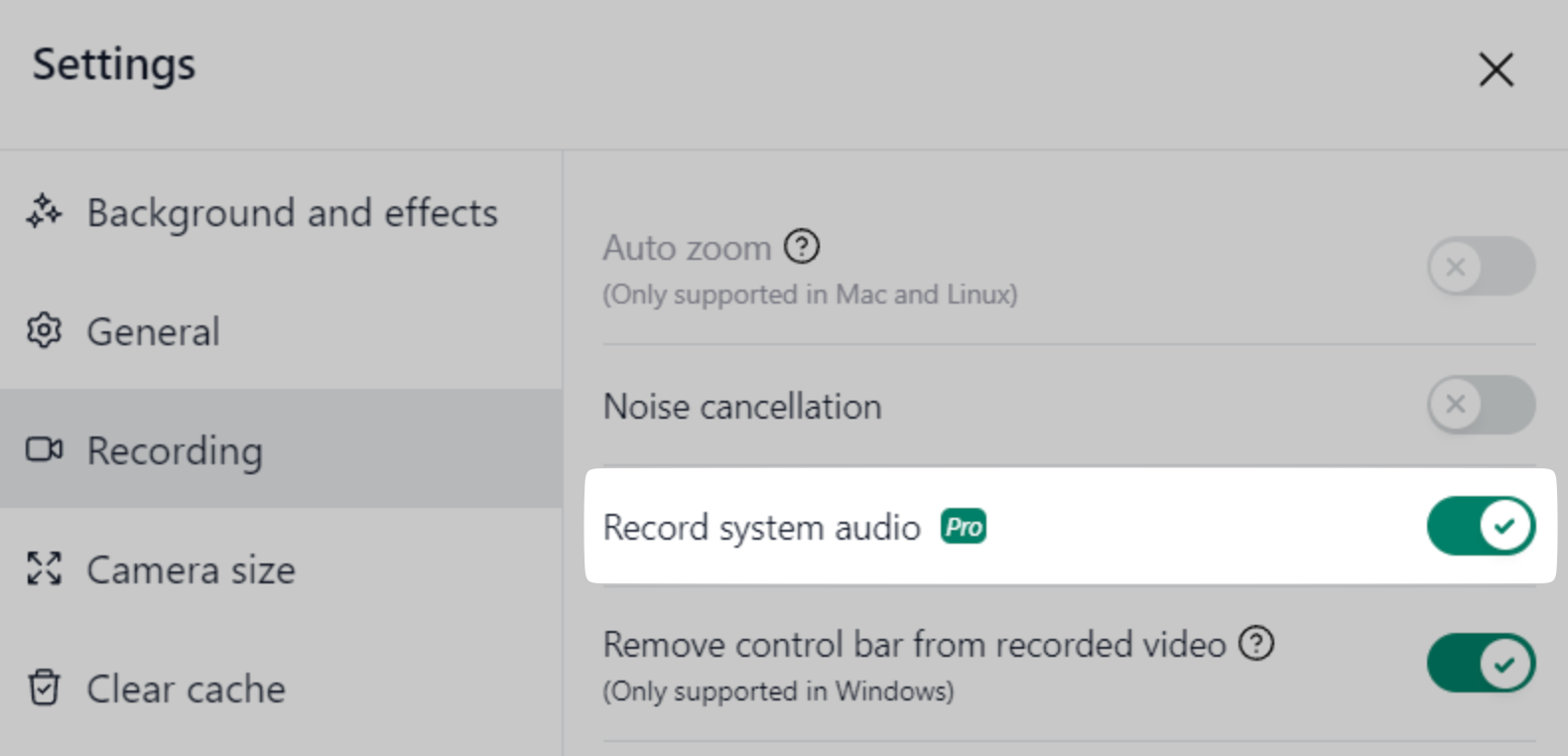
Open NeetoRecord's Settings.
Go to the Recording section.
Turn on the Record system audio toggle.
On a Mac, recording system audio in the desktop app needs macOS 15 or later.
Recording system audio in the Chrome extension
Open the NeetoRecord Chrome extension and go to Settings → Recording.
Turn on the Record system audio toggle.
Recording system audio in the web recorder
The web recorder doesn't have a separate toggle. When you start a recording, Chrome asks what you want to share, and on the Pro plan it also offers to share the audio.
Select the Chrome Tab you want to record.
Turn on Also share tab audio.
Click Share.
NeetoRecord mixes the shared audio with your microphone. If your microphone is off, only the shared audio is recorded. Depending on your computer, Chrome may also offer to share audio when you share your entire screen.