
If you already have some videos recorded and you want to bring them to NeetoRecord then we consider it an "external video." The free plan of NeetoRecord doesn't allow you to upload any external video.
The Pro plan will allow you to upload external videos.
Once you upload your video, and then if you downgrade your plan to a free plan, then also the uploaded videos will continue to function properly forever. Once a video is "in" NeetoRecord then it will continue to work.
Before you start, check that each video is an MP4 file of less than 2 GB. Other video formats aren't supported. You can upload up to 10 files at a time.
Go to the Recordings page.
Click Upload at the top right.
In the Upload videos window, drag your MP4 files into the box, or click the box to choose them from your computer.
Click Upload at the bottom of the window.
Keep the window open until the upload finishes, because closing it cancels the upload. When the upload is done, the window closes and your videos appear on the Recordings page. If you open a folder before you click Upload, the videos are saved in that folder.
By default there won't be any thumbnail for the uploaded external videos. However you can add a custom thumbnail to your video.
Check used storage
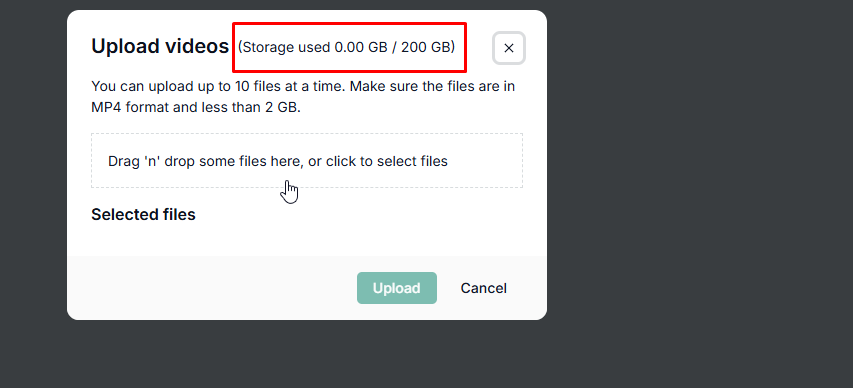
The Pro plan allows each person to upload 200 GB of external video. This limit does not reset every month but is cumulative of all external videos uploaded by each person.
Click Upload at the top right of the Recordings page.
-
Next to the Upload videos title, the window shows how much of your 200 GB you have used.