

NeetoRecord allows viewers to leave comments on your recordings. Comments make it easy to share feedback, ask questions, or have a conversation directly on the recording — without needing a separate channel like email or chat.
You can add comments as an Admin, a team member or a viewer. Viewers will have to log in to add a comment. No sign-up is required.
Adding a comment
To add a comment:
Open the Comments tab from your recording.
Type your comment in the editor at the bottom of the sidebar.
Click the Add comment button or press Ctrl+Enter (Cmd+Enter on Mac) to submit.
The editor supports rich text formatting. Click the Aa button to toggle the formatting toolbar, which includes options for block quotes, code blocks, emoji, and more.
If you are not logged in, a login modal will appear when you try to submit your comment. Your draft is automatically saved, so after you log in, the comment will be posted immediately — you do not need to type it again.
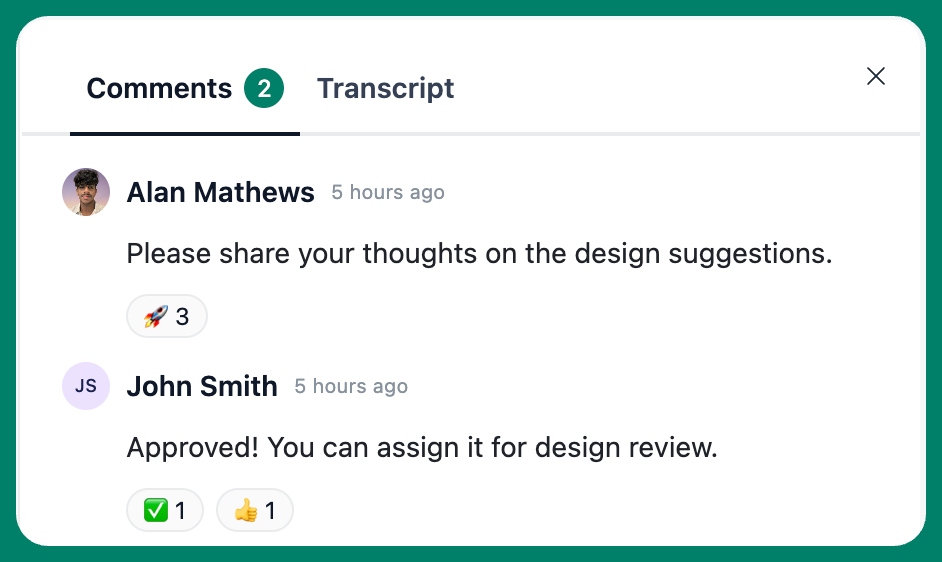
Editing a comment
You can edit your own comments at any time.
Hover over the comment you want to edit.
Click the three-dot menu icon that appears.
Select Edit.
Modify the comment in the inline editor that appears.
Click Save to apply your changes, or Cancel to discard them.
Deleting a comment
You can delete your own comments. Workspace admins can also delete any comment on their recordings.
Hover over the comment you want to delete.
Click the three-dot menu icon.
Select Delete.
To restore a deleted comment, click Undo.
Sharing a link to a comment
You can share a direct link to any specific comment on a recording.
Click the three-dot menu on the comment.
Select Copy link.
The link is copied to your clipboard. When someone opens this link, the comments sidebar will automatically open, scroll to the specific comment, and briefly highlight it.
Adding a timestamped comment
When you leave a comment, NeetoRecord can attach it to the exact moment you're watching. Timestamped comments make feedback specific, instead of "the button looks off," your comment points to 1:24, and anyone reading it can jump straight there.
Timestamps are on by default. When you open the comment editor, the Add comment button shows the current playback time, for example Add comment at 1:24. The time follows the playhead until you start typing.
To add a comment,
Play or go to the moment you want to comment on.
Type your comment in the editor.
-
Click Add comment at
time, or press Ctrl+Enter (Cmd+Enter on Mac).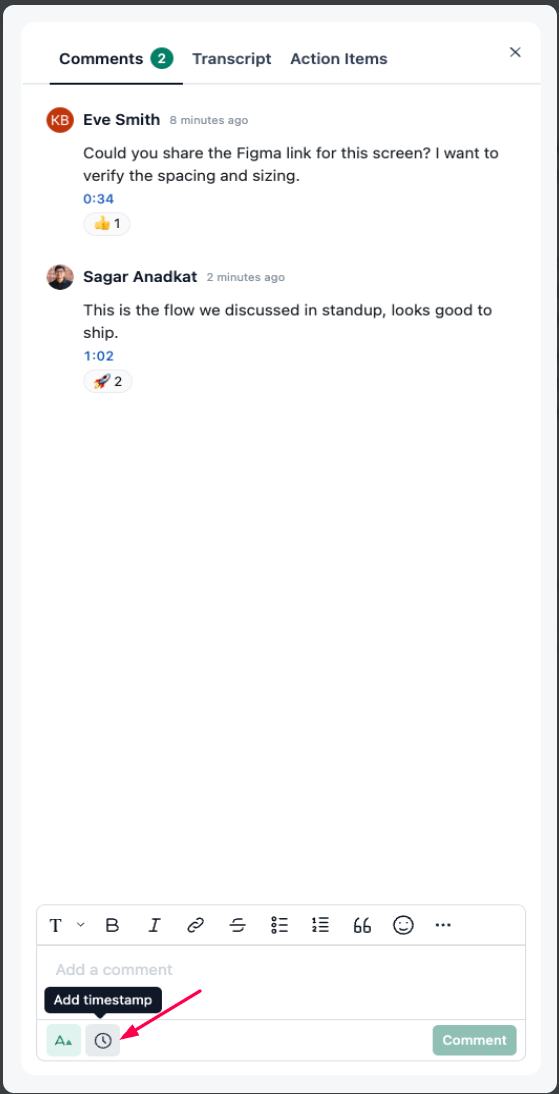
The comment is saved and pinned to that moment.
Commenting without a timestamp
Some comments are about the recording as a whole, not a single moment. To leave one of those:
Click the clock icon in the editor footer to turn the timestamp off.
Type your comment and submit it as usual.
The button changes back to Add comment, and the comment is saved with no timestamp. Click the clock again to turn timestamps back on.
Jumping to a comment's moment
There are three ways to move through a recording using timestamped comments.
Click the timestamp: Every timestamped comment displays its time (e.g., 1:24) below the text. Click it to jump straight to that moment.
Use comment markers: Timestamped comments appear as bubbles on the video progress bar. When several comments are close together, the bubble shows a count. Hover over a bubble to preview the comment, or click it to open it in the Comments tab.
Follow along in real-time: As the video plays, the comment closest to the current playback time briefly highlights in the sidebar, keeping the feedback in sync with the video.