

Trimming a video is essential for creating polished and professional recordings. You can trim a video in two ways — drag the edges of a clip directly, or split and delete the parts you don't want. Use dragging for quick start/end trims, and splitting when you want to cut a section out of the middle.
Trim a video
Navigate to the Edit page for the recorded video from the left sidebar.
To trim from the start or end of a clip, use the drag handles and drag the left or right edge inward. Drag back outward at any time to bring trimmed content back.
-
To cut a section out of the middle, place the green playback indicator to where you want the cut, and click Split (or use "S" key as a shortcut).
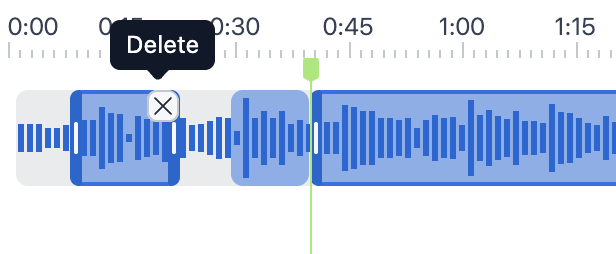
After splitting, you can drag the edges of the resulting clips, or hover the unwanted clip and click the X in its top-right corner to remove it from the timeline.
Once you're done, click the Apply changes button.
The video will begin processing, and the page will auto-reload once done.
Tip: Zoom into the timeline for finer adjustments. The more you zoom in, the more precise your trims and splits can be.
Undo and redo changes
While editing, you can undo or redo your changes one action at a time. Each undo reverses exactly the last change you made — a split or a delete — and redo brings it back.
Click the Undo icon on the top right to reverse your last change.
Click the Redo icon to bring back a change you just undid.
Discard changes or restore original video
The editor gives you two ways to roll back, both available from the Discard new changes button:
Discard new changes — clears the splits and deletes you've made in the current editing session before applying them, so you can start over.
Revert to original — open the dropdown next to Discard new changes and select this to restore the video back to its original, unedited state, undoing edits you've already applied.
Processing time
Processing the trimmed video can depend on the video size. Longer videos may take more time to process.
Transcripts, summaries and chapters are not automatically updated
Transcripts and chapters will not automatically update after the split and merge operation. You can regenerate them by going to their respective pages from the left sidebar.
The summary won't be updated automatically. You can edit the summary manually if needed.