

You can add tags to your recordings to label, group, and quickly find related videos. Tags are useful when you want to organize recordings by topic, project, or status without moving them into separate folders.
Adding a tag to a recording
Go to the recording.
Open the Basic info section.
-
Click the Tags button and select a tag from the list. You can type in the search box to filter existing tags.
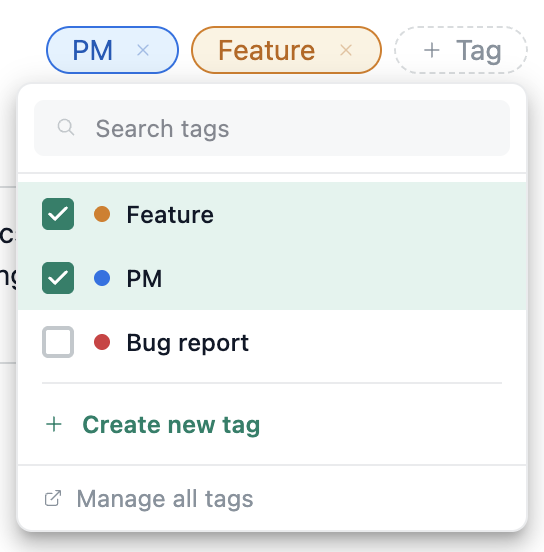
You can add multiple tags to the same recording.
Creating a new tag
If the tag you need doesn't exist yet, you can create one without leaving the recording:
Open the Tags dropdown in the Basic info section.
-
Click on create new tag at the bottom of the dropdown.
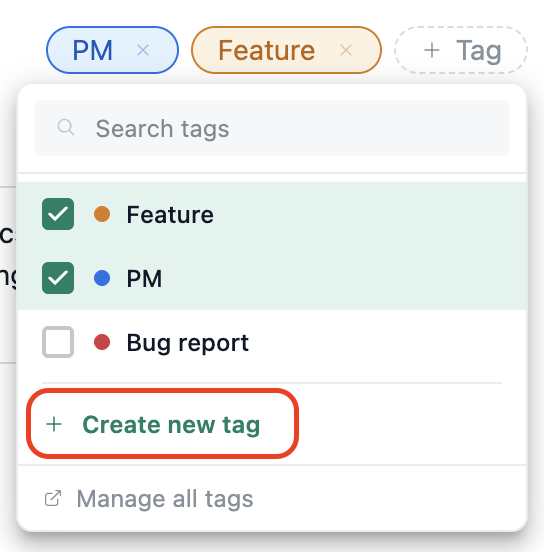
Give the tag a name and style and save changes.
The new tag is created and applied to your recording right away, and becomes available to use on your other recordings too.
Removing a tag
To remove a tag from a recording, click the x on the tag in the Basic info section or uncheck it from the dropdown.
Managing all tags
Go to any recording and open the Basic info section.
Click the Tags dropdown.
-
Click Manage all tags at the bottom of the dropdown.
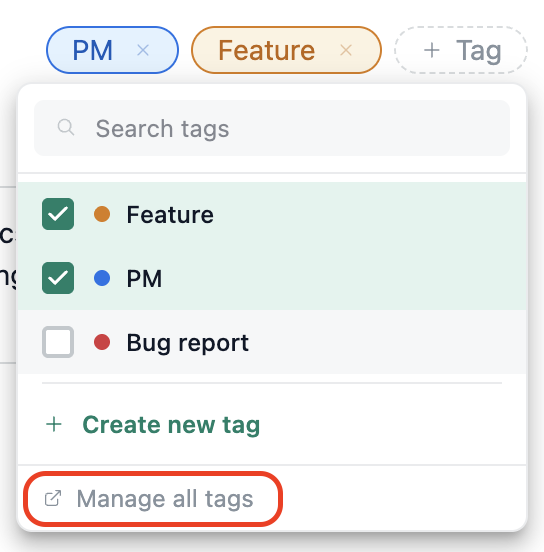
You'll land on the Recording tags page under your Admin panel, where you can create, edit, merge, and delete tags.
You can also reach this page directly from Admin panel → Recording tags.
Tags will not appear in the public watch page. Viewers of your shared recording will not see any tags you've added.