

Markers let you save moments in a recording while you watch it, each with an optional note, so you can find them again later. You add markers on the recording's watch page, where they appear on the video's progress bar and in the Markers tab next to the video.
Adding a marker from the video timeline
Hover over the video's progress bar. A time label appears above the pointer.
-
Hover over the time label until it changes to Mark, then click it.
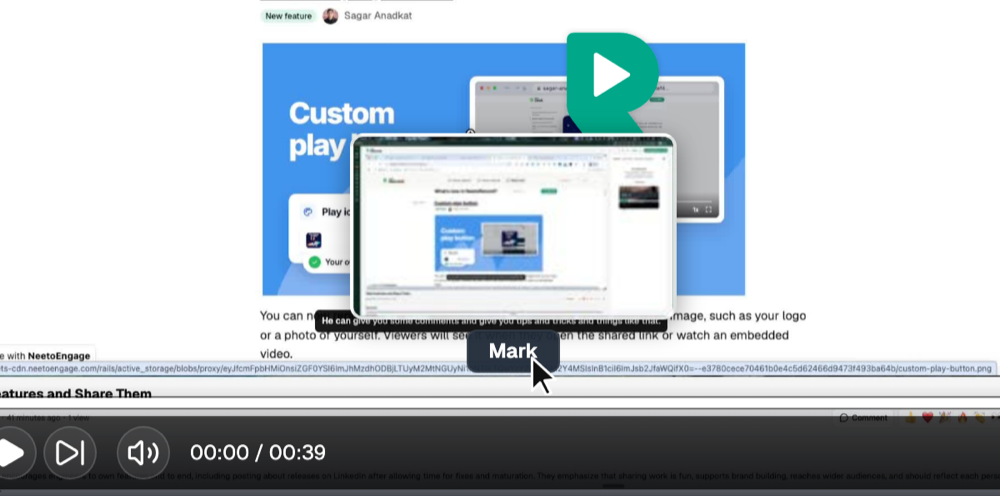
Type a note of up to 200 characters.
Press Enter to save the marker.
To discard the marker instead, press Escape. If you don't type a note, the marker is saved without one, and you can add a note later from the Markers tab.
Adding a marker from the Markers tab
Play or go to the moment you want to mark.
Click the Markers tab in the sidebar.
-
Click Add marker.
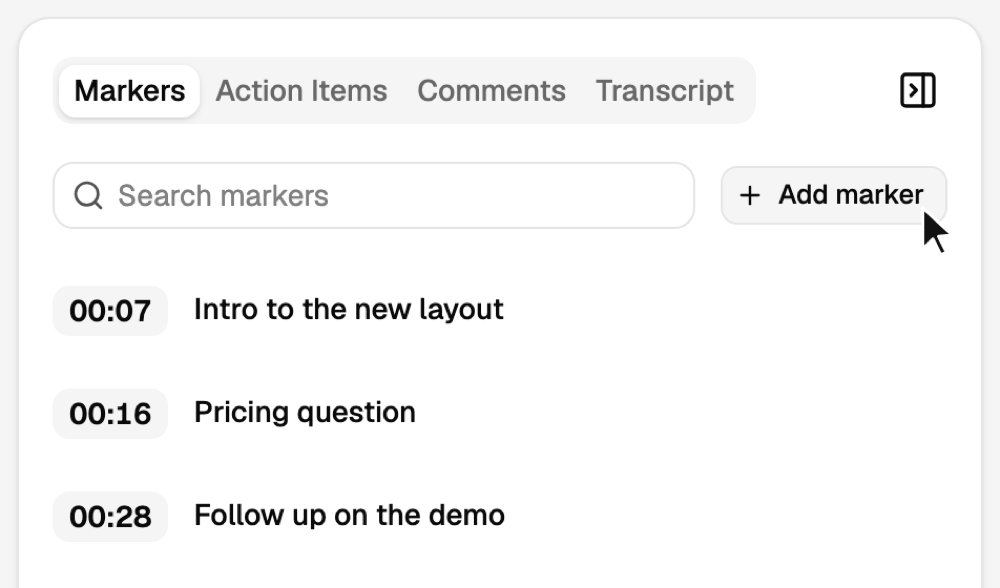
Type a note and press Enter.
The marker is placed at the current playback time. The Markers tab is the first tab in the sidebar and opens by default.
Jumping to a marker
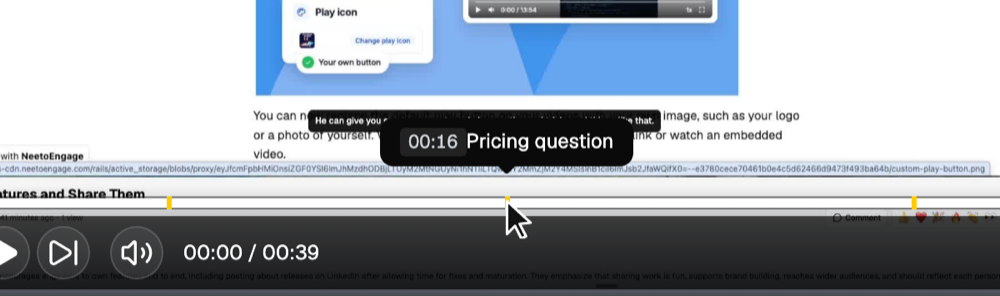
Each marker appears as a small yellow notch on the progress bar. Hover over a notch to see its time and note, and click it to jump to that moment.
The Markers tab lists your markers in time order. Click a marker's time to jump to it. As the video plays, the latest marker at or before the current playback time is highlighted. To find a marker, type in the search box at the top of the tab; it matches the text of your notes.
Editing and deleting markers
In the Markers tab, hover over the marker.
Click the three-dot menu.
-
Select Edit to change the note, or Delete to remove the marker.
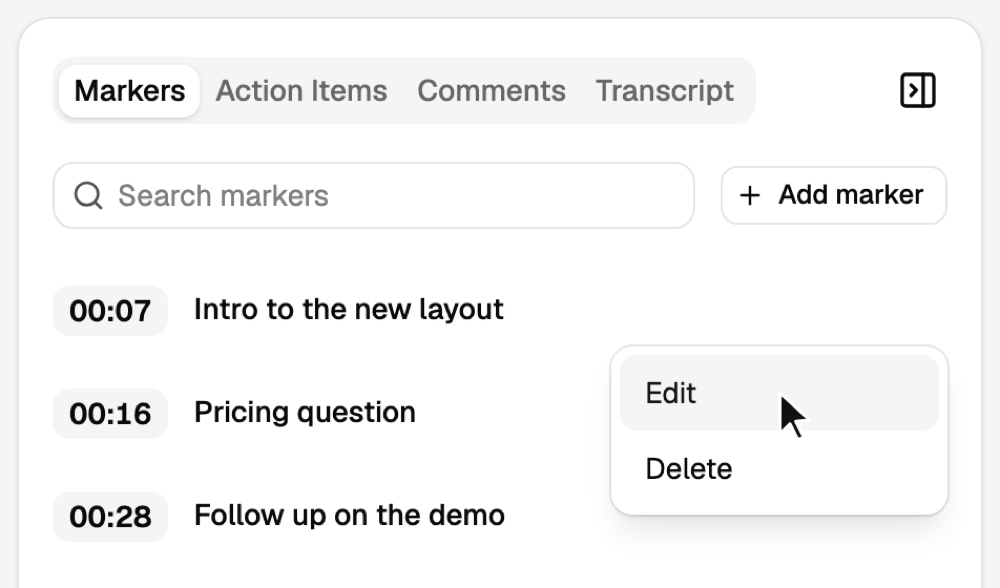
When you edit a note, press Enter to save it or Escape to cancel. For a marker without a note, click Add a note under its time to write one.
Where your markers are saved
Markers are saved in the browser you're watching in, not in a NeetoRecord account, so they are private to you. The recording's owner and other viewers don't see your markers, and your markers don't appear on your other devices or in other browsers. Clearing your browser's site data for NeetoRecord removes them.
Markers are available on the recording's watch page. They don't appear in videos embedded on other websites or in the recording editor.
To leave feedback that others can see at a specific moment, add a timestamped comment instead; see Commenting on recordings. To split a recording into named sections for every viewer, see Video chaptering.